WooCommerce doesn’t give customers a way to manage their own WooCommerce account deletion. By default, the only option is for a store admin to remove accounts manually from the WordPress dashboard — and that’s a problem, now that data privacy laws like GDPR and CCPA require you to honour deletion requests promptly.
If a customer asks you to delete their account and you’re still doing WooCommerce account deletion manually, one request at a time, you’re already behind. This guide covers why frontend account deletion matters, what to watch out for before turning it on, and the easiest way to set it up without writing any code.
Why Customer-Initiated Deletion Isn’t Optional Anymore
A lot of store owners assume keeping every account is a good thing — more users, more remarketing reach, more chances of a repeat customer. That’s not entirely wrong, but it overlooks a few real downsides that get worse the longer those accounts sit untouched. And it doesn’t change the fact that customers expect more control over their own data these days.
1. Respecting the Law Under GDPR and CCPA
GDPR’s “right to be forgotten” and CCPA’s deletion rights both push toward honoring requests promptly rather than indefinitely. The UK’s ICO and the US FTC have both published guidance reinforcing the same expectation. Manual-only deletion means every request becomes a ticket someone has to remember to act on. (This isn’t legal advice — talk to someone qualified about what applies to your store specifically.)
2. Security Concerns for Dormant Accounts
Old, inactive accounts are an easy target. They tend to carry weak or reused passwords — often the same ones exposed in other data breaches. That’s what makes credential stuffing attacks work: hackers just try stolen login combos across thousands of sites until something hits.
Have I Been Pwned alone tracks billions of compromised credentials. If even a handful of your dormant users reuse those passwords, your store is exposed. Old accounts also pile up unused data, which just adds extra clutter. Jetpack, a security and performance plugin, helps with both – it watches for brute-force attempts and keeps your site running fast. Pair it with regular cleanup, and you’ve got less to worry about.
3. Database Bloat and Site Performance
Run a store for a few years and you’ll end up with thousands of registered accounts, many from people who bought once and never came back. Each one is still sitting there with metadata, addresses, and order history attached.
That adds up, slower queries, bigger backups, more server load. Letting customers clear out their own accounts is a small thing that keeps your database (and your site) running better.
4. Trust and Transparency with Customers
Customers know their data rights better than they used to. If deleting an account is hard or impossible, you risk losing their trust, getting a bad review, or worse — having them escalate to a formal erasure request you now have to deal with manually. A simple self-service option shows you’re not making this harder than it needs to be.
What to Consider Before Enabling Customer WooCommerce Account Deletion
Order history: a hard delete can orphan or wipe order records. Anonymize instead, strip personal details, keep financial ones intact. Skipping this is how stores end up scrambling months later when an old order needs to be pulled for a tax review and the record’s gone.
Marketing and analytics impact: once deleted, customers come out of email lists and analytics, that’s the point of an erasure request, just say so clearly in your privacy policy and on the deletion screen.
Accidental deletions: a confirmation step, password re-entry or an emailed link, isn’t optional. Make the irreversibility obvious before the final click.
Best Practices for Safe Frontend Account Deletion in WooCommerce
Whether you implement frontend deletion manually or with a plugin, these practices ensure the process is secure, compliant, and user-friendly.
1. Require Identity Verification Before Deletion
Don’t let anyone delete an account without proving it’s actually theirs — password confirmation or a one-time email link both work. Skip this and you’re one hijacked session or shared device away from someone deleting an account that isn’t theirs.
2. Display Clear and Prominent Warnings
The deletion screen should be very clear about what will be lost – personal information, saved addresses, access to orders, loyalty points, and that this action cannot be undone.
3. Anonymize Order Data Rather Than Hard Deleting It
Strip the names, emails, and billing details, but keep the order totals and transaction data. That keeps you compliant with privacy law without breaking your books.
4. Send a Deletion Confirmation Email
Once it’s done, email the customer to confirm it. It gives them proof, and it gives you a paper trail if a regulator ever comes asking.
5. Document the Process in Your Privacy Policy
Spell out how deletion works, what gets removed versus retained, and how long it takes. This isn’t just good practice — it’s expected.
Setting This Up: WP Frontend Delete Account PRO
Building this yourself means custom PHP, template overrides, a verification flow, anonymization logic, and email notifications. WP Frontend Delete Account (free version) covers the basics, and the PRO version handles the full flow automatically. Here’s how it actually works, step by step:
Step 1: Automatic WooCommerce Integration
Install and activate it, and a “Delete Account” tab shows up automatically on the WooCommerce My Account page — no template edits, no shortcodes, no setup. If you’re not on WooCommerce, there’s a Gutenberg block and a [wp_frontend_delete_account] shortcode you can drop on any page instead.
Step 2: Customer starts the deletion
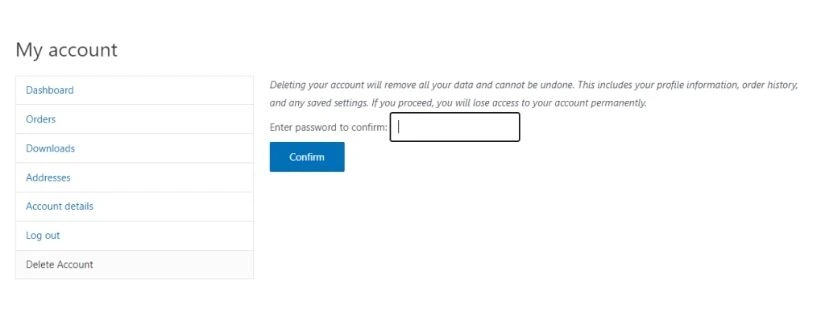
They click into the Delete Account tab and immediately see a warning – what’s getting deleted, and that it can’t be undone. No surprises, no accidental clicks.
Step 3: Identity Verification
They’re asked for their current password before anything happens. Simple, but it closes the door on shared-device or hijacked-session deletions.
Step 4: Secure Data Processing
Once confirmed, the plugin deletes their personal data and anonymises their order records – names, emails, and billing info stripped out, totals kept intact for your records.
Step 5: Confirmation Email Sent
An email goes out automatically confirming the deletion. That’s your audit trail, sorted, with zero manual effort.
Step 6: Logout and Redirect
The customer’s logged out and redirected right away. Clean finish, nothing left hanging.
Bonus – Role Exclusion Controls
You can exclude specific roles — admins, shop managers, whoever you don’t want anyone accidentally deleting. One setting, no risk of losing a backend account by mistake.
For complete setup instructions covering WooCommerce, non-WooCommerce, and Classic Editor configurations, see the official plugin documentation and tutorial.
Frequently Asked Questions
Can customers delete their own account by default?
No, only an admin can, manually.
Does deleting an account remove order history?
Depends, hard delete orphans orders; anonymizing is safer.
Is frontend deletion required under GDPR?
Not specifically, but it speeds up compliance.
What happens to active orders on deletion?
Worth blocking deletion or flagging it clearly first.
Can I control who can delete their account?
Yes, role exclusion settings handle that.
Conclusion
Letting customers delete their own account builds trust, not just compliance. Whatever method a store owner chooses, the same requirements need to be in place: identity verification before deletion, anonymized rather than hard-deleted order data, and a written confirmation once it’s done. For store owners who’d rather not build that flow from scratch, WP Frontend Delete Account PRO by Mini Plugins takes care of it out of the box.

Samikshya Sapkota is an SEO practitioner and content writer working with Mini Plugins. She focuses on building content that drives real organic traffic, from keyword strategy to publish-ready blog posts for WordPress, WooCommerce, and eCommerce audiences.


Leave a Reply