
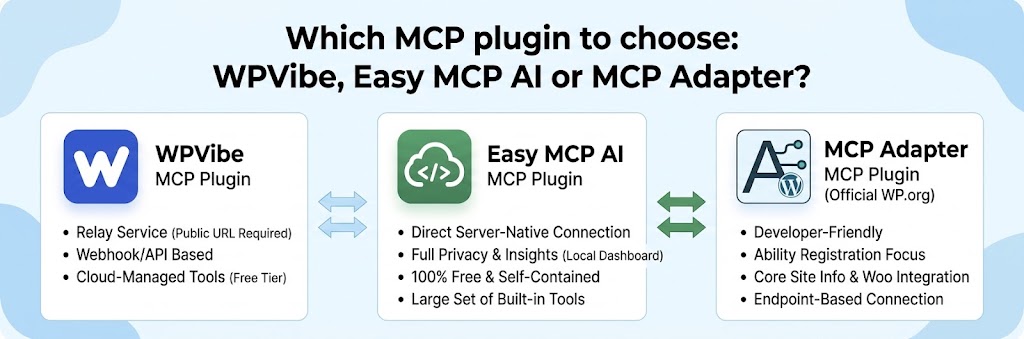
I tested the three MCP plugins for WordPress to compare and see which one is a good fit for us based on their approach, setup complexity and overall functionality. They all share the same primary goal though – turning your WordPress site into a Model Context Protocol (MCP) server so the AI assistants like Claude, ChatGPT, DeepSeek, Cursor etc. can work on your WordPress site. For example, you can say the following to your AI assistant:
- Publish and update content: “take this post from Google docs and publish it. Add category “Tutorials” with tag “WordPress MCP”.
- SEO: “Scan all published posts and find missing meta descriptions on each posts. Automatically fix them based on the post content.“
- WooCommerce: “Increase prices by 10% on all products that are on sale and update stock counts for out of stock products.“
- User Management: “Identify all inactive users and run WPForce Logout plugin to disconnect those who are inactive since last 2 hours.”
These plugins are for self-hosted WordPress sites, for wordpress.com, there’s already a WordPress.com MCP Server.
1) Easy MCP AI
Easy MCP AI looks very clean in interface and easy to setup. It has a total of 18 clients. I’m connecting Claude Code to the local site. To connect the Claude Code to the site, Easy MCP API has the three steps:
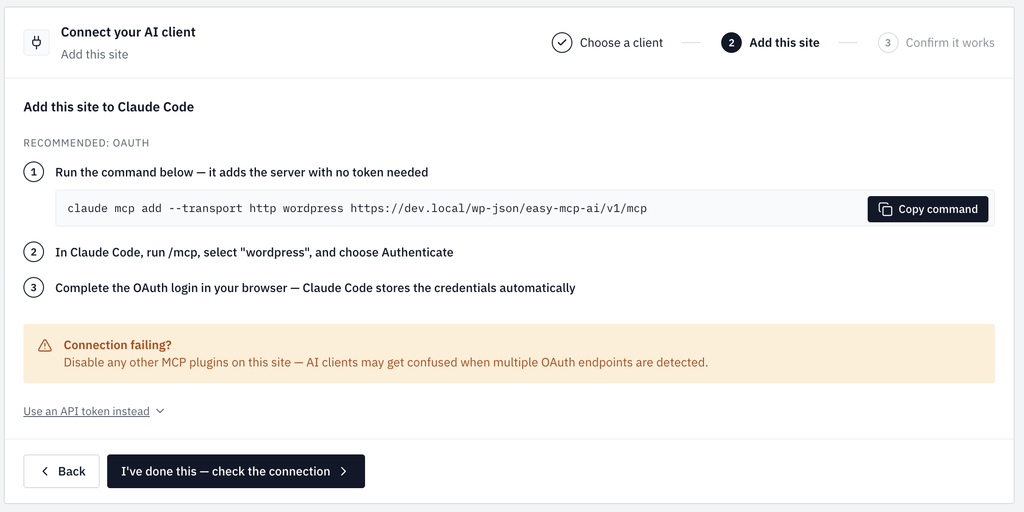
After running the command and authenticate using step 2, then after successful authentication you’re all set. Claude Code is connected to your WordPress site.
There’s a another way to connect using token. If you’ve already added your Anthropic API keys in Settings > Connectors, which comes by default since WordPresss 7.0, you connect with the similar approach.
Any way you connect, the dashboard shows the number of calls, success rate etc.
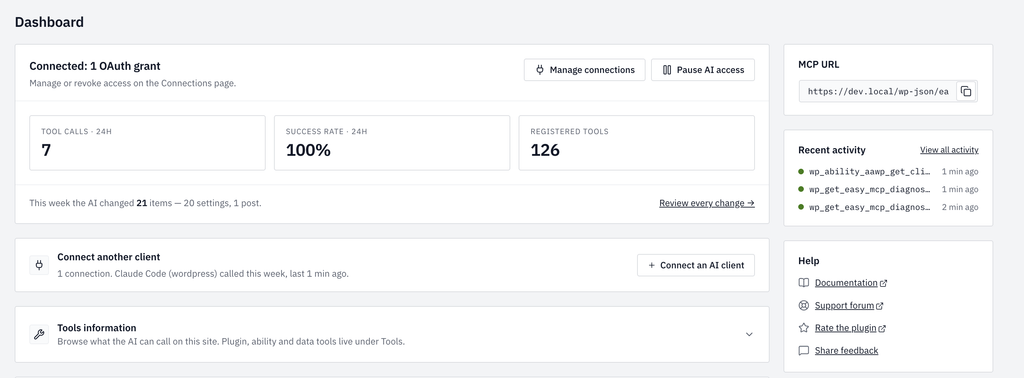
In the sidebar, you can see MCP URL, your site URL and Recent activity, you can see the abilities used by the AI Assistant during the interaction with your site. You can see the full activity in the Activity tab. The plugins/themes can add abiltities so that MCP server (your site) exposes them and MCP client (Claude Code) can read or write the data.
So, this plugin have full activity logging, built-in diagonostics, usages, granular control options and probably everything you’ll ever need in a MCP plugin.
2) WPVibe
WPVibe doesn’t have a way to connect to the local site as it requires a public address. WPVibe is also a relay service unlike Easy MCP AI. This means all your prompts to the AI Assistant goes to the WPVibe first before going to your site. It acts as an external proxy. while Easy MCP AI acts as a direct MCP server hosted directly on your WordPress installation.
Here’s what happens: AI Client > WPVibe Cloud (mcp.wpvibe.ai) > Webhook / API Request > Your Site.
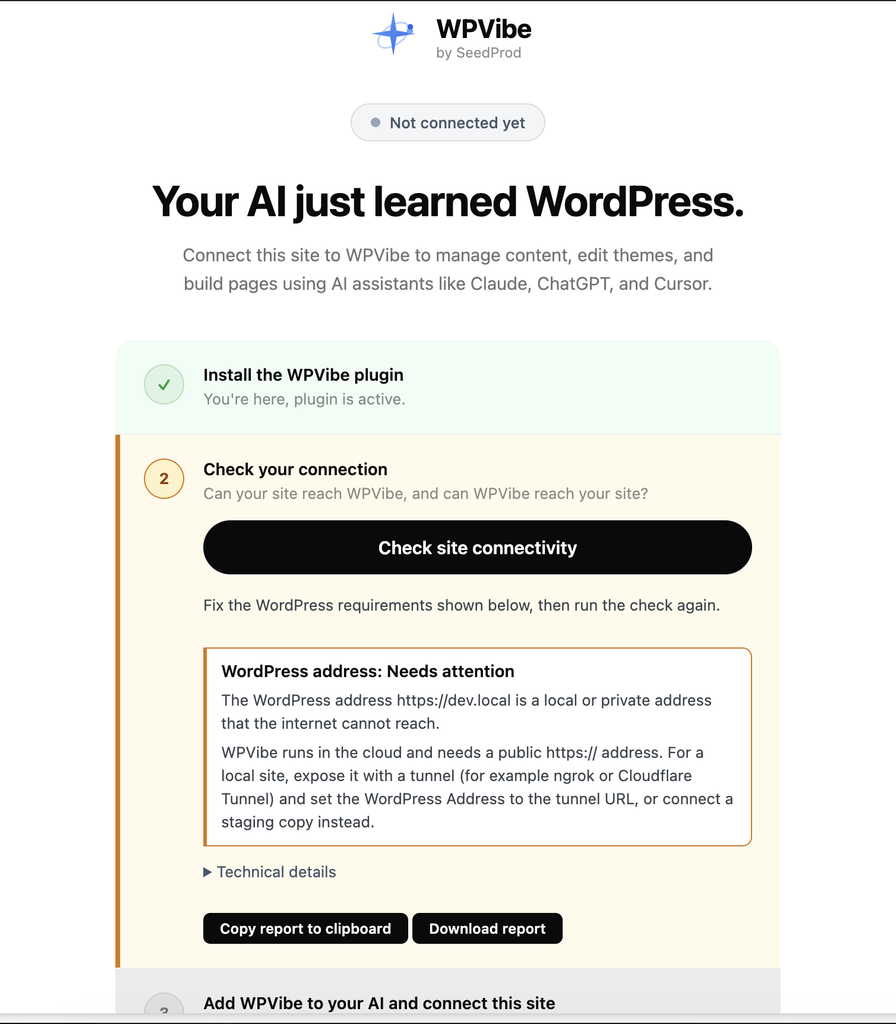
Now that we can’t connect to WPVibe with local, let’s do with tunneling approach. I used ngrok for this. Once, I connected local site, the WPVibe plugin site connectivity passed.
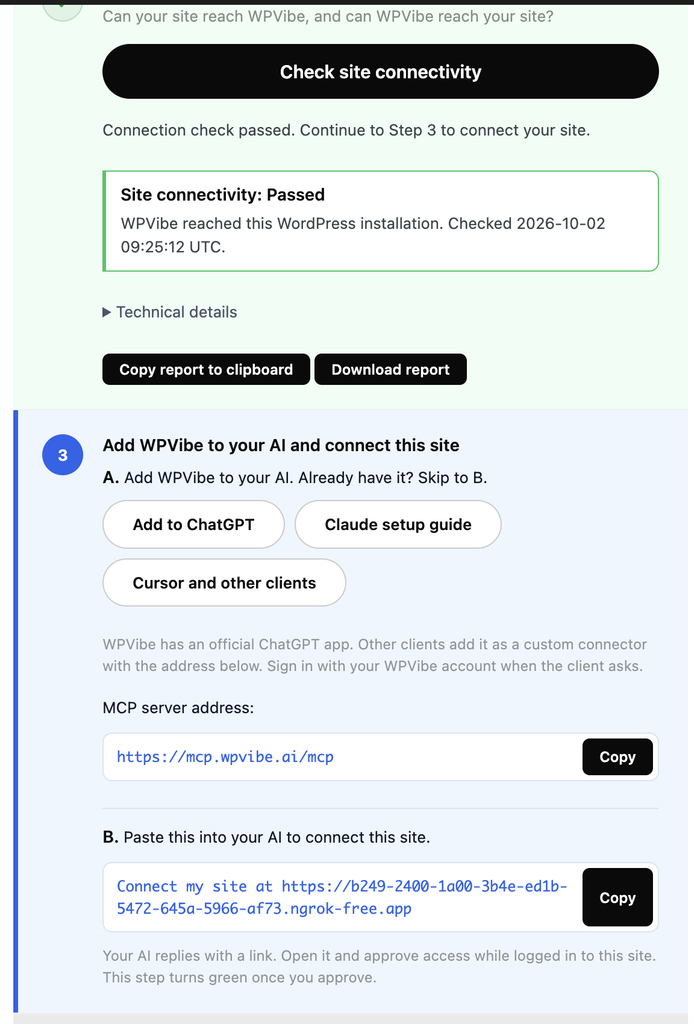
Now, to connect the AI assistant, it looks like you’ll need a WPVibe account. However, the service itself offer a free tier which includes 100 tools calls per day. To check your usage simply ask AI “how much WPVibe usage do I have left?”
If you’re confused on step 3, the easiest way is to let AI Assistant connect itself. Then, it’ll create WPVibe mcp, when you enter /mcp you’ll see it. Then, you’ll need to authenticate using your WPVibe account which it’ll ask you to create if you haven’t already. Once connected, you’re all set.
WPVibe doesn’t seem to have rich features and granular controls like Easy MCP AI.
3) MCP Adapter
MCP Adapter is a official plugin by WordPress.org. It is more of a developer friendly and only exposes “abilities” that plugins register with wp_register_ability(). For example, core site info, WooCommerce, AAWP plugin, while the other plugins such as Easy MCP AI and WPVibe has their large set of tools to create post, update post, manage menus etc.
To configure to the MCP Adapter plugin, you just install and activate the plugin. It doesn’t directly connect to the MCP client though. You still need to configure the connection with your MCP client.
The plugin creates this endpoint automatically. After installing MCP Adapter, the MCP endpoint is:
https://example.com/wp-json/mcp/mcp-adapter-default-server
Your MCP client needs to be configured to connect to that endpoint and authenticate with a WordPress user.
However, you can simply say to your MCP client “Connect this MCP client to my WordPress site’s MCP server.”
Conclusion
Between these three options, Easy MCP AI is the clear winner. Here is why I prefer Easy MCP AI:
1) Direct Connections: Because it acts as a direct, server-native MCP endpoint on your WordPress site, everythig is under your control. Your data and prompts flow direcly between your AI client and your WordPress REST API. No middleman.
2) Complete Privacy & Insights: Full activity logging, real-time diagnostics, and granular ability permissions stay strictly within your WordPress dashboard – not on a thiry party cloud server.
3) 100% Free & Self-Contained: Easy MCP AI is free while WPVibe is not entirely free. The WPVibe plugin is only a connector to your wpvibe.ai account. It does have a free tier which limits to 100 calls per day.
4) Large set of tools: Unlike MCP Adapter, Easy MCP AI has a large set of ready made tools to use, such as create post, update post etc. while WPVibe may also have those tools, they’re managed from their own endpoint.
Disclaimer: I’m not affiliated with any plugins in any way.

Sanjeev Aryal is the creative mind behind Mini Plugins, a brand dedicated to developing lightweight, efficient WordPress plugins. He also writes occasionally and contributes to WordPress community.


Leave a Reply