Your WooCommerce Orders screen takes eight seconds to load. Reports time out. Your nightly backup has doubled in size since last year.
Old orders are a likely cause. Every order you’ve ever taken still sits in your database, with its line items, notes and metadata. A store with five years of sales can carry hundreds of thousands of rows nobody looks at.
This guide walks you through a WooCommerce database cleanup that removes those orders safely. First you’ll check how big the problem is. Then you’ll keep the records your accountant needs. After that, you can clear old orders by hand or on autopilot.
Where old orders live, and what they slow down
One WooCommerce order isn’t one row. It spreads across several tables:
- The order itself. Stores using High-Performance Order Storage (HPOS) keep it in
wc_ordersand its related tables. Older stores keep it inwp_postsandwp_postmeta. - Line items and their details, in
woocommerce_order_itemsandwoocommerce_order_itemmeta. - Order notes, which WordPress stores as comments.
- Analytics data, in
wc_order_statsand the other lookup tables.
So a single order with three products and a few notes adds dozens of rows. Multiply that by 50,000 orders and the growth adds up fast.
What it slows down, and what it doesn’t. Old orders mostly hurt the admin side. Think of the Orders screen, order search, reports, exports and backups. Your storefront loads products, not past orders, so shoppers rarely notice. If your product pages are slow, check hosting, caching and image sizes first.
Check whether old orders are the problem
Two quick checks tell you if a cleanup is worth the effort.
- Check your database size. Go to Tools → Site Health → Info and open Directories and Sizes. The Database size line shows the total.
- Count your old orders. Go to WooCommerce → Orders. The number next to All shows your total, and the month filter shows how far back they go.
Tens of thousands of orders older than a year or two, plus a sluggish Orders screen? Old orders are a likely cause. If you only have a few hundred orders, the slowdown comes from somewhere else. Deleting them won’t fix it.
Before you delete anything: keep what you’re required to keep
This is the step that makes the cleanup safe. Skip it, and you could delete records your tax office expects to see years from now.
1. Know how long you must keep sales records
The rules depend on where your business is registered. Here are three common examples:
| Country | General rule | Source |
|---|---|---|
| UK (limited companies) | 6 years from the end of the financial year the records relate to | GOV.UK |
| Australia | 5 years for most business records, 7 years for company records | business.gov.au |
| US | 3 years in most cases, longer in some situations | IRS |
Treat this as a starting point, not legal advice. Ask your accountant before you pick a deletion period.
Retention cuts both ways. Privacy laws such as GDPR say you shouldn’t keep personal data longer than you need it. So holding every order forever isn’t the safe choice either. Our WooCommerce account deletion compliance guide covers the privacy side.
Here’s the part most guides miss. The law says you must keep the records. It doesn’t say they must live in WooCommerce. Many stores keep them in their accounting software or an export archive instead. Once that copy exists, the one in your store database is mostly dead weight.
2. Export your order data
For sales totals, go to WooCommerce → Analytics → Orders, set your date range and click Download. WooCommerce emails you the CSV if the export is large.
Need full order details, such as addresses, line items and custom fields? Customer / Order / Coupon Export on the WooCommerce Marketplace exports them to CSV or XML. It can also send exports on a schedule by email or FTP, so your archive stays current.
One thing to know: deleted orders drop out of WooCommerce Analytics. Export any reports you’ll want to compare against later.
3. Take a full backup
Back up your database right before your first cleanup. Many hosts do this for you. If yours doesn’t, Jetpack offers VaultPress Backup with real-time backups and one-click restores.
Treat every deletion as permanent, because with WC Auto Delete Old Orders it is. A backup you’ve never restored is a guess, so make sure you know how to restore it.
4. Look for old orders that still matter
Some old orders are still active. Think of open warranty claims, refunds in progress or long-running subscriptions. If you use WooCommerce Subscriptions, test the cleanup on a staging copy first. Renewal orders link back to earlier orders, so you want to see the effect before it touches live data.
Method 1: Delete old orders manually
This works for a one-time cleanup on a smaller store.
- Go to WooCommerce → Orders.
- Pick an old month from the date filter and click Filter.
- Select the checkbox in the header row to select every order on the page.
- Choose Move to Trash from Bulk actions and click Apply.
- Open the Trash view and click Empty Trash to delete them for good.
To handle more orders per page, open Screen Options at the top and raise the number of items.
Where it falls short:
- It’s slow. A store with 50,000 old orders means hundreds of rounds of select, trash and empty.
- Big batches can time out halfway, leaving you unsure what got deleted.
- It’s a one-off. Orders keep coming, so next year you’re back where you started.
Method 2: Delete old orders automatically with WC Auto Delete Old Orders
WC Auto Delete Old Orders from Mini Plugins turns the cleanup into a rule. You set an age limit once. From then on, the plugin removes any order that passes it, so the database never builds up again.
Step 1: Install the plugin
Buy the plugin from the WC Auto Delete Old Orders page. It costs $19 a year or $39 one-time for a single site. Then go to Plugins → Add New → Upload Plugin, upload the ZIP file and activate it. It’s a paid-only plugin, so enter your license key to finish setup
Step 2: Set your age limit
Go to WooCommerce → Settings → General and find Auto Delete Old Orders (Months). Enter a number of months and click Save changes.
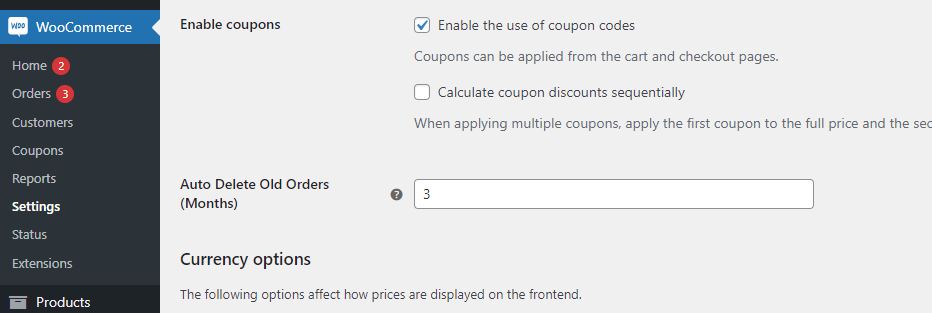
The default is 3 months. Most stores should change it, based on what you decided earlier:
- Your full records live in accounting software or an export archive. A short period is fine. Pick one that covers your refund and warranty window.
- Your store is your only record. Set the limit to cover your legal retention period. For a UK limited company, that means at least 84 months. The six years only start at the end of the financial year, so 72 months can fall short.
The plugin goes by order age alone. It removes old orders whatever their status, so make sure nothing that old is still in progress. Deletions are also permanent. Orders skip the trash entirely, so your backup is the only way to bring one back.
Step 3: Check that it’s running
The plugin works in the background through WooCommerce’s Action Scheduler. Every 5 minutes, it deletes 10 orders, along with all of each order’s associated metadata. Small batches mean your server never has to handle thousands at once.
That works out to about 120 orders an hour, or 2,880 a day. A store with a 50,000-order backlog needs around 17 days to catch up. After that, the plugin only has to keep pace with orders as they pass your age limit.
To see it working, go to Tools → Scheduled Actions and search for wc_delete_old_orders_process.

A Pending entry means the next run is queued. If you see Failed entries, the Log column tells you what went wrong. Our guide to auto-deleting old WooCommerce orders covers how the plugin works in more detail.
After the cleanup: reclaim the disk space
Deleting rows doesn’t always shrink your database straight away. MySQL marks the space as free and reuses it for new data. The files on disk often stay the same size, though. So if Site Health shows the same database size after a cleanup, nothing went wrong.
To get the space back, optimize the tables you cleaned:
- Take a fresh backup first.
- Open phpMyAdmin from your hosting control panel.
- Select the order tables. On HPOS stores, that’s
wp_wc_orders,wp_woocommerce_order_itemsandwp_woocommerce_order_itemmeta. Older stores usewp_postsandwp_postmetainstead. Your prefix may differ fromwp_. - Choose Optimize table from the With selected menu below the list.
Each table locks while it rebuilds, so run this at a quiet time. On a big store, or if phpMyAdmin feels risky, ask your host to do it for you.
Clean up the rest of your WooCommerce database
Old orders are usually the biggest item, but not the only one. WooCommerce has built-in tools for most of the rest under WooCommerce → Status → Tools.
- The Expired transients tool removes cached data that has already expired. It’s safe to run any time.
- The WooCommerce transients tool clears WooCommerce’s own cache, which rebuilds itself as pages load.
- The Clear customer sessions tool wipes every saved session. Careful with this one, because it empties every shopper’s cart. Run it at your quietest hour.
Scheduled actions can pile up too. WooCommerce removes completed actions after 30 days by default, so that table normally stays in check. If it’s still huge, look for a plugin that keeps creating failed actions.
Years of customer accounts that never bought anything add weight as well. Our post on deleting WooCommerce users with no orders covers when that’s worth doing.
Frequently Asked Questions
Will deleting old orders speed up my WooCommerce store?
It mainly speeds up the admin. The Orders screen, search, reports, exports and backups all get faster. Shoppers on your product pages are unlikely to notice a difference.
Is it safe to delete old WooCommerce orders?
Yes, if you do it in the right order. Export the data you need, take a backup, and only delete orders older than your legal retention period. If your accounting software already holds full records, a shorter period is fine.
Can customers still see deleted orders in My Account?
No. Once you delete an order, it disappears from the customer’s order history too. If customers often look up old invoices, keep a longer age limit.
Will deleting orders change my WooCommerce reports?
Yes. Deleted orders drop out of WooCommerce Analytics. Download any reports you need before the first cleanup.
How many months of orders should I keep?
It depends on where your full records live. If they’re in your accounting software, a few months covering refunds and warranties is enough. If your store is the only copy, match your tax retention period. Your accountant can confirm the exact number.
Can I get back an order the plugin deleted?
Only from a backup. WC Auto Delete Old Orders deletes orders permanently, without moving them to the trash first.
Keep your database clean without thinking about it
A one-off cleanup fixes today’s slow admin. Without a rule in place, the orders just pile up again. Export what you need and take a backup. Then pick an age limit that suits your records, and let WC Auto Delete Old Orders handle the rest.

Samikshya Sapkota is an SEO practitioner and content writer working with Mini Plugins. She focuses on building content that drives real organic traffic, from keyword strategy to publish-ready blog posts for WordPress, WooCommerce, and eCommerce audiences.


Leave a Reply