
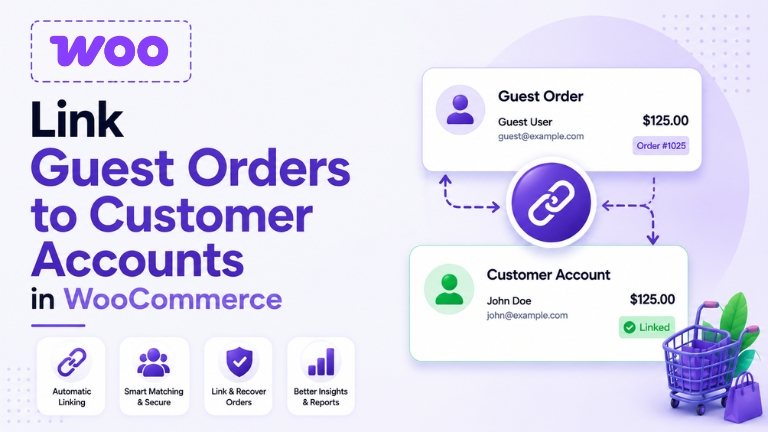
Quick Answer: WooCommerce does not automatically link guest orders to customer accounts. To connect them, you need to match the guest’s billing email to a registered account, either manually per order, via custom code, or automatically using a plugin. For most stores, a plugin is the only realistic solution at scale.
If you’re running a WooCommerce store with guest checkout enabled, there’s a good chance you’re sitting on a pile of customer data you don’t even know you have.
Every time a guest places an order, WooCommerce captures their name, email, and purchase details. But if that same person has a registered account on your store – or creates one later – WooCommerce never connects the dots. Those orders just sit there, orphaned, invisible to your customer profiles, your reports, and your marketing tools.It’s one of those quiet problems that doesn’t announce itself. You just end up with incomplete data, confused returning customers, and analytics that don’t reflect reality.
In this blog, we’ll break down exactly why this happens, what it’s costing you, and the best ways to fix it.
Does WooCommerce Automatically Link Guest Orders to Customer Accounts?
No, and this surprises a lot of store owners when they first discover it.
WooCommerce’s guest checkout is designed to make buying as frictionless as possible. Customers can order without creating an account, which reduces cart abandonment and improves conversions. That’s a good thing.
The problem is that WooCommerce stops there. It captures the billing email on every guest order, but it never uses that email to check whether a registered account already exists. Even if a customer has shopped with you a dozen times as a guest using the same email address, WooCommerce will treat every one of those orders as if they came from a complete stranger.
This isn’t a bug. It’s just a gap, one that WooCommerce leaves for store owners to handle themselves.
What Happens to Guest Orders That Aren’t Linked?
More than you’d expect. Here’s where it quietly hurts your store:
Your customer lifetime value data is wrong. WooCommerce only counts orders assigned to a registered account when calculating LTV. Guest orders don’t factor in at all. So your most loyal customers, the ones who’ve ordered five or six times as guests, might look like first-time buyers in your reports.
Returning customers feel like strangers in their own account. Imagine a customer who ordered from you twice as a guest, then finally creates an account expecting to see their order history. Their account is empty. That’s a frustrating experience that erodes trust and generates support tickets you shouldn’t be dealing with.
Your email segmentation is working with incomplete data. If your email tool pulls purchase history from WooCommerce, it’s missing every guest order. You might be sending “first purchase” welcome sequences to customers who’ve bought from you three times.
Retention metrics are skewed. If a guest places four orders and then registers, WooCommerce treats their first logged-in order as their very first purchase. Your churn and retention numbers end up telling a story that isn’t true.
How Do You Link Guest Orders to Customer Accounts in WooCommerce?
There are three ways to tackle this. Which one makes sense depends on the size of your store and how much of this you want to handle yourself.
Option 1: Manual Linking – Is It Worth It?
WooCommerce does give you a way to reassign guest orders to registered customers – it’s just entirely manual. According to the official WooCommerce order management documentation, you can update customer assignment directly from the Edit Order page in your WP Admin dashboard.
Here is how to do it:
- Go to WooCommerce → Orders in your WordPress dashboard
- Open the guest order you want to reassign
- In the order details panel on the right, find the Customer field — it will show “Guest”
- Start typing the customer’s name or email address and select the matching registered account
- Click Update to save the change
The order is now linked to that customer account and will appear in their order history.
It works, but the moment you realise how many guest orders are sitting in your database, you’ll understand why this isn’t a real solution. If your store has been running guest checkout for six months or more, you could be looking at hundreds of unlinked orders. Doing this one by one isn’t just tedious – it’s time you can’t get back.
Option 2: Custom Code — What Are the Risks?
If you have a developer available, a custom solution is possible. The approach involves writing a function that hooks into WooCommerce order events – typically woocommerce_checkout_order_processed for new orders and woocommerce_created_customer for new account registrations – and runs a billing email lookup against existing registered users. If a match is found, the order gets reassigned using wp_update_post or WooCommerce’s native order API.
For historical orders, you’d also need a separate one-time script that loops through all existing guest orders, runs the same email comparison, and links matches in bulk.
It works well when built properly. The catch is maintenance. WooCommerce updates frequently, and any change to order data structures or hook behaviour can silently break a custom function. Unless you have a developer you trust to maintain it long-term, you’re introducing a fragile dependency into your store for a problem that has a more stable solution.
Option 3: Can a Plugin Automatically Link Guest Orders in WooCommerce?
Yes, and for most store owners, this is where the problem actually gets solved properly.
We built WooCommerce Customer Order Recovery Pro specifically because this problem kept coming up and neither manual linking nor custom code solved it reliably for real stores running at scale. The plugin handles everything in the background using a scheduled process, no manual effort, no developer, no ongoing maintenance on your end.
It covers three scenarios automatically:
- Logged-in customer places an order assigned to their account immediately at checkout
- Guest creates an account after ordering — their previous guest orders are retroactively matched and linked using billing email
- Background scanning — a scheduled batch process works through your entire existing order history, finds guest orders with a matching registered account email, and links them quietly without affecting your store’s performance
That third scenario is what most plugins miss. It’s not just about catching future orders, it goes back through everything already in your database and recovers what’s been accumulating since you first enabled guest checkout.
You can monitor everything it does under WooCommerce → Status → Logs — matched orders, processed batches, anything skipped, so you always know exactly what’s been linked and what hasn’t.
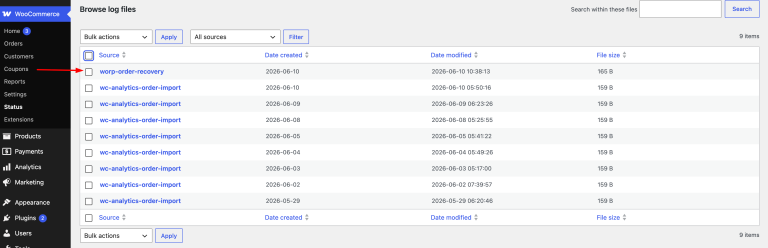
For a full walkthrough on setting it up, see the step-by-step tutorial: How to Use WooCommerce Order Recovery Pro
What Does Your Store Look Like Before and After Linking Guest Orders?
Here’s what actually changes once guest orders are properly linked:
Before: A customer who ordered four times as a guest and once as a registered user shows a lifetime value of one order. Your email tool puts them in the new customer segment. Their account page shows one order. Your reports suggest they’re a low-engagement buyer.
After: That same customer shows five orders. Their LTV is accurate. Your email tool correctly identifies them as a repeat buyer. They log into their account and see their full purchase history. And your retention data reflects what they’ve actually done – not just what WooCommerce could see.
For stores that have been running guest checkout for a year or more, recovering this historical data doesn’t just tidy things up, it fundamentally changes how you understand your customer base and who you’re actually marketing to.
Frequently Asked Questions
Does WooCommerce link guest orders to accounts automatically?
No. WooCommerce captures the billing email on guest orders but doesn’t run any matching process in the background. Guest orders stay unlinked unless you use a plugin or custom code to handle it.
Will linking guest orders affect existing customers or orders?
No. Only previously unlinked guest orders are affected. Orders already assigned to registered customers are never touched.
What if the guest used a different email than their registered account?
Matching is done by billing email. If the emails don’t match, the order can’t be automatically linked – the addresses need to be the same.
Does this work for historical guest orders placed before installing the plugin?
Yes. WooCommerce Customer Order Recovery Pro scans your full existing order database through background processing , not just orders placed after installation.
Do customers need to do anything?
Nothing at all. Everything runs silently in the background without any action required from your customers.
Will guest checkout still work after fixing this?
Completely. The plugin doesn’t touch your checkout flow. Customers can still order as guests, their orders are just linked to accounts automatically afterward.
Why is my WooCommerce guest order not showing in my account?
Guest orders are placed without an account, so WooCommerce doesn’t link them automatically. You need a plugin that matches guest orders to your account by email after registration.
Guest checkout isn’t the problem, leaving the data it generates disconnected is. Every guest order your store accepts is a piece of your customer story that WooCommerce doesn’t tell unless you give it a way to. Whether you fix it manually, with code, or with a plugin, the important thing is that you fix it – because right now, the gap is costing you more than you probably realise.
Stop Losing Guest Order Data
WooCommerce Customer Order Recovery Pro automatically links guest orders to customer accounts in the background, no manual work, no developer needed.
Get WooCommerce Customer Order Recovery Pro. From $29/year. 7-day money back guarantee.

Samikshya Sapkota is an SEO practitioner and content writer working with Mini Plugins. She focuses on building content that drives real organic traffic, from keyword strategy to publish-ready blog posts for WordPress, WooCommerce, and eCommerce audiences.


Leave a Reply