Someone buys your $49 course. A week later, that account is active in Leeds, Lagos and Texas at the same time. You sold one seat, and four people are using it.
WordPress won’t stop this on its own. Any user can log in on as many devices as they like, all at once. You get no warning.
This guide shows you how to prevent multiple logins in WordPress. Each account gets one active session at a time. We’ll cover three methods: a built-in button, a short code snippet and a plugin setting. The plugin takes about two minutes to set up.
Why multiple logins are a problem
For a personal blog, it doesn’t matter much. For any site where a login is the product, it matters a lot.
- Membership and course sites lose revenue. If you sell access with something like WooCommerce Memberships or Sensei, every shared password is a sale you didn’t make. Share one account around a study group and you can lose a dozen subscriptions.
- Subscription stores get the same leak. Stores running WooCommerce Subscriptions for gated downloads or member pricing have the same problem. A shared login means shared perks.
- Security gets harder to judge. Say an account is active in three places at once. You can’t tell a family member from an attacker with a stolen password. With one session per user, a stolen login fights the real owner for the session. Someone notices fast.
- Staff accounts drift. Editors and shop managers often log in on shared office machines. Then they forget to log out. Old sessions pile up on devices nobody is watching.
How WordPress handles login sessions by default
Every time someone logs in, WordPress creates a session token. It saves the token in that user’s metadata (the session_tokens field) and puts a matching cookie in the browser. Log in from a second device and you get a second token. A third device gives you a third.
There’s no cap. WordPress keeps every token until it expires or someone logs out. By default that’s two days, or 14 days if the user ticks “Remember Me”.
So “one session per user” really means one thing. When a user logs in and gets a new token, delete all their other tokens. All three methods below do exactly that. They differ in how much work it takes and how much control you get.
Method 1: Use the built-in “Log Out Everywhere Else” button
WordPress already has a manual version of this. You’ll find it at the bottom of the profile screen.
- Go to Users → Profile (or Users → All Users and click a user’s name).
- Scroll down to the Sessions section.
- On your own profile, click Log Out Everywhere Else. On another user’s profile, admins see Log Out Everywhere instead.
The button only appears when the account has more than one active session. If you can’t see it, that user has only one session.
Where it falls short: it’s a one-off cleanup, not a rule. The person sharing their password can log straight back in on all those devices a minute later. You’d also have to check users one by one. That’s fine for one suspicious account and useless for a site with 2,000 members.
Need to clear every session on the site at once, say after a breach? Our guide on how to force logout all users in WordPress covers that.
Method 2: Add a code snippet that ends old sessions on login
If you’re comfortable with a little PHP, you can make the rule automatic. The snippet below runs each time WordPress sets a login cookie. It keeps the new session and destroys every other session for that user.
Add it to your child theme’s functions.php or to a code snippets plugin. Don’t put it in a parent theme, because the next theme update will wipe it.
/**
 * Allow only one active session per user.
 * The newest login wins; older sessions are destroyed.
 */
add_action( 'set_logged_in_cookie', 'mp_one_session_per_user', 10, 6 );

function mp_one_session_per_user( $cookie, $expire, $expiration, $user_id, $scheme, $token ) {

    // Optional: let administrators stay logged in on several devices.
    if ( user_can( $user_id, 'manage_options' ) ) {
        return;
    }

    $sessions = WP_Session_Tokens::get_instance( $user_id );
    $sessions->destroy_others( $token );
}
Here’s what happens in practice. Sam logs in on his laptop. His friend then logs in with the same details on a phone. The phone gets the new session. The next time Sam’s laptop loads a page, he lands on the login screen.
We hook into set_logged_in_cookie rather than wp_login because it hands us the new session’s token. With wp_login, the token isn’t easy to get yet. You’d risk destroying the session you meant to keep.
Where it falls short:
- There’s no settings screen. Changing anything, even pausing it for a week, means editing code.
- It does one job. If you later want idle logout or logout on browser close, that’s more custom code to write and maintain.
- Test it on a staging site first. A typo in
functions.phpcan take the whole site down.
Method 3: Turn on Single Session in WPForce Logout Pro
This is the method we’d pick for most membership sites, course sites and stores. You get the same “newest login wins” rule as the snippet, with no code. You also get other session controls you’ll likely want later.
WPForce Logout Pro is a session control plugin from Mini Plugins. Its Single Session setting does exactly what this guide is about. When someone logs in from a new device, their session on the first device ends.
Step 1: Get and install WPForce Logout Pro
Buy the plugin from the WPForce Logout Pro page. After checkout, you’ll get an email with the plugin ZIP file and your license key.
- In your WordPress dashboard, go to Plugins → Add New → Upload Plugin.
- Upload the ZIP file, then install and activate it. It shows up in your plugin list as WPForce Logout.
- A welcome screen asks for your license key. Paste in the key from your email and click Activate License.
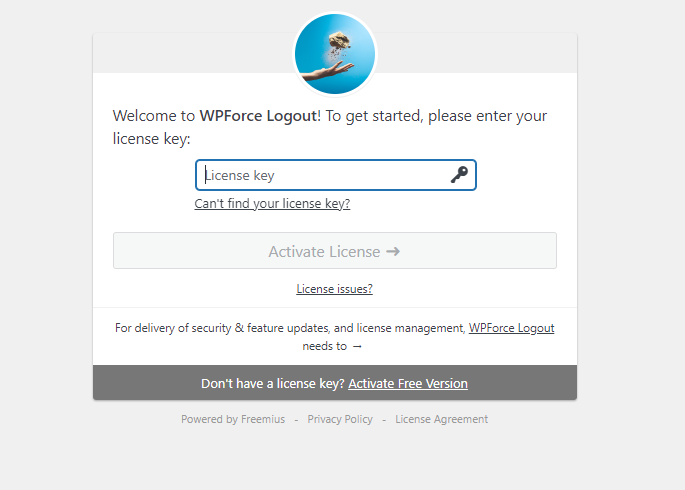
Our WPForce Logout setup guide walks through this with screenshots.
Step 2: Turn on Single Session
Go to Users → WPForce Logout. This opens the WPForce Logout PRO settings page. Tick Single Session (“Allow only one active login per user. New login from another device invalidates old session.”) and click Save Changes.
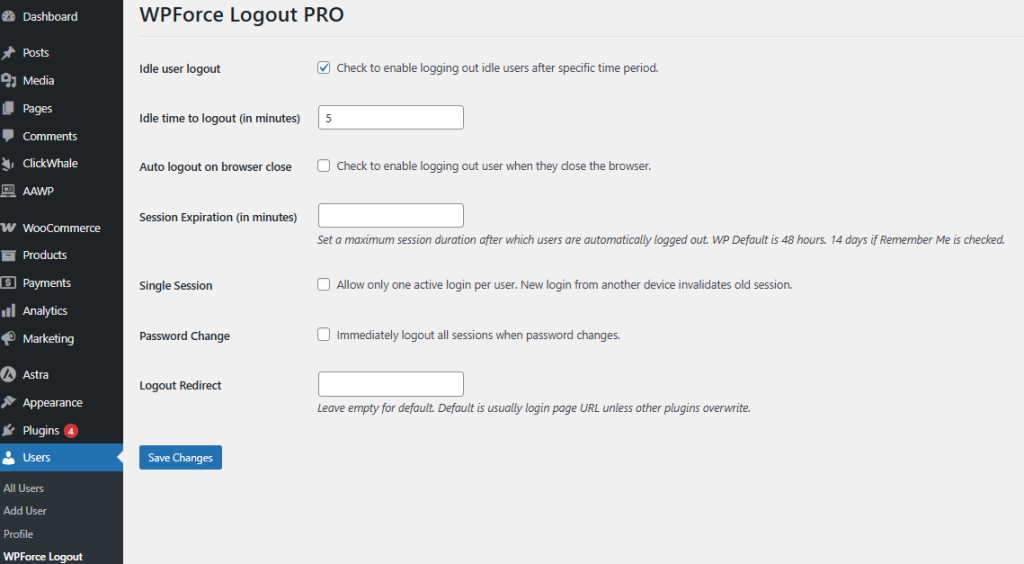
That’s the whole setup. Every account on the site, admins included, now gets one active login.
Step 3: Test it with two browsers
Don’t take it on trust. Create a test subscriber account, then:
- Log in as the test user in Chrome.
- Log in as the same user in Firefox, or in a private window.
- Go back to Chrome and refresh. You should land on the login page.
If Chrome still shows you as logged in, clear any page caching for logged-in users and try again. Some caching setups serve old pages to logged-in visitors.
What else Pro adds
Single Session sits on the same settings page as the plugin’s other session controls. Most sites end up using two or three of them together:
- Idle user logout signs users out after a set number of minutes with no activity. That’s handy for shared office machines. We cover it in how to automatically log out idle users in WordPress.
- Auto logout on browser close ends the session when the browser shuts. That suits library or café computers, where the next person in the chair shouldn’t inherit your account.
- Session expiration caps how long any login lasts. WordPress defaults to 48 hours, or 14 days with “Remember Me”. You can set your own limit in minutes.
- Password change logs out every session the moment a user changes their password. If someone was sharing a login, changing the password cuts everyone else off straight away.
- Logout redirect sends people to a page you pick after logout. That could be your pricing page or a short notice.
Which method should you use?
| Log Out Everywhere Else | Code snippet | WPForce Logout Pro | |
|---|---|---|---|
| Enforces one session automatically | No, manual only | Yes | Yes |
| Coding needed | No | Yes (PHP) | No |
| Survives theme changes | Yes | Only in a child theme or snippets plugin | Yes |
| Settings screen | No | No | Yes |
| Idle logout and browser-close logout | No | Extra custom code | Built in |
| Cost | Free | Free (your time) | $19/year or $29 lifetime |
| Best for | One suspicious account | Developers who want one rule only | Membership, course and subscription sites |
Our honest take? If you’re a developer who only needs this one rule, the snippet is fine. If you sell access to anything, the plugin pays for itself. You can change its settings in 30 seconds.
Tips before you switch it on
Tell your members first. Add a line to your terms or welcome email, such as “One account, one device at a time.” People handle a sudden logout much better when you’ve warned them.
Think about your own team. Admins often work from a laptop and a phone at once, and the rule applies to them as well. With the snippet, keep the admin exemption in place. WPForce Logout Pro applies Single Session to admins too, so warn your team before you switch it on.
Expect a short spike in support emails. The first week usually brings a few “I keep getting logged out” messages. Most come from people logged in on both a phone and a laptop. A ready-made reply saves you time.
Pair it with a strong password policy. One session per user limits the damage from a shared or stolen password. It won’t stop someone guessing the password in the first place.
Frequently Asked Question
Q. Can WordPress limit logins per user without a plugin?
Not out of the box. WordPress allows unlimited sessions per account. The code snippet in Method 2 adds the rule for you. Or you can remove extra sessions by hand with the “Log Out Everywhere Else” button.
Q. What happens to the first user when a second person logs in?
With Single Session on, the older session ends. The next time the first device loads a page, WordPress sends it to the login screen. The newest login stays active.
Q. Will this log out administrators too?
With WPForce Logout Pro, yes. Single Session applies to every account. If an admin signs in on a phone, their laptop session ends. If your team needs several devices at once, the snippet in Method 2 skips administrators by default.
Q. Does one session per user work with WooCommerce?
Yes. WooCommerce customers are ordinary WordPress users. The same rule covers the My Account area, member pricing and downloadable products.
Stop paying for logins you didn’t sell
If people pay to get into your site, one account should mean one person. The built-in button cleans up a single account, and the snippet works if you’re happy to maintain code. For everyone else, WPForce Logout Pro turns on Single Session in a couple of clicks. Idle logout and browser-close logout are there when you need them.

Samikshya Sapkota is an SEO practitioner and content writer working with Mini Plugins. She focuses on building content that drives real organic traffic, from keyword strategy to publish-ready blog posts for WordPress, WooCommerce, and eCommerce audiences.


Leave a Reply